
Guide
The menu bar icon
| Icon | Meaning |
|---|---|
mic |
your microphone is live |
mic.slash, red |
muted |
mic.badge.xmark |
this input device can’t be muted |
Left click toggles mute. Right click opens the menu. Every state change pulses the icon twice, so a change catches your eye without being noisy.
The icon reads the device, not the app’s memory of it. Mute from System Settings or another app and sotto reflects it within a second.
Input
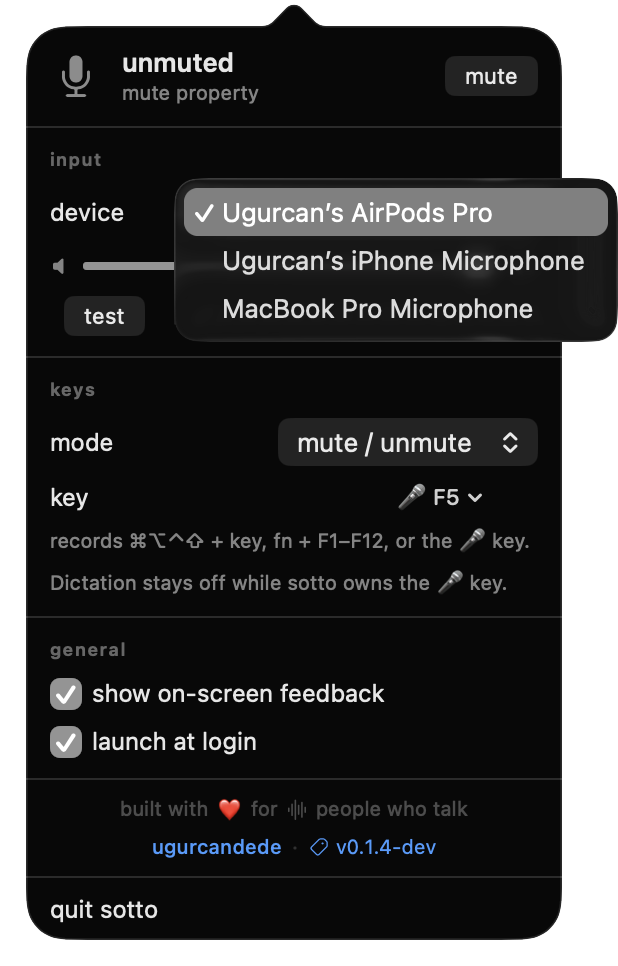
Pick the microphone sotto controls — the choice is the system default input, so it changes what every app records from.
macOS sometimes refuses a switch: a Continuity microphone needs the phone awake, and AirPods only carry audio in one direction at a time. When that happens sotto tells you instead of silently snapping back.
Below the picker are input gain and a test button. It runs a five second level meter; the microphone is open only during those seconds, which is the only time macOS shows its orange recording dot for sotto.
Keys
Pick a mode — mute / unmute toggles with each press; push to talk opens the mic only while the key is down — then assign one key. The field offers three things:
- record shortcut… — press ⌘⌥⌃⇧ with any key, or fn with an F-key
- 🎤 mic key (F5) — claims the microphone key on your keyboard
- none — no global key at all; use the icon or the menu
A key on its own doesn’t record: it would swallow your typing everywhere. Push to talk is the one exception — there a bare modifier records too, so you can hold right ⌥ to talk.
About the 🎤 key
macOS turns the microphone key into a Dictation trigger before any app can see
it. sotto gets underneath that by remapping the key at the HID layer with
hidutil, which needs no permission. While the key is bound to sotto,
Dictation stays quiet; unbind it or quit sotto and Dictation comes back. The
remap never survives a logout, so it cannot get stuck.
If you already remap keys yourself, sotto reads the existing table and adds only its own row, leaving your mappings alone.
Push to talk
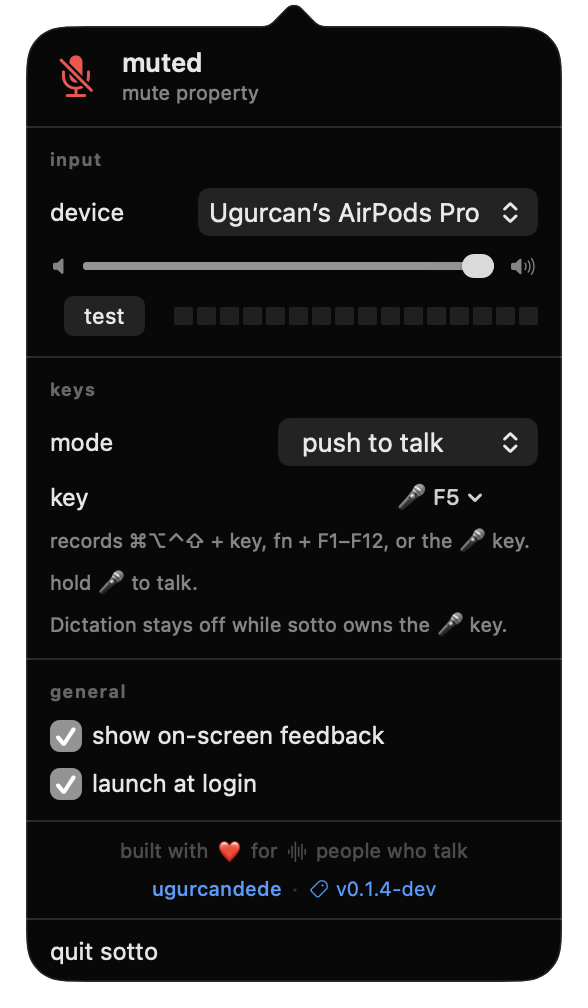
Switch mode to push to talk and the logic inverts: the mic rests muted, and it opens only while your key is held. Let go and you are muted again — there is no state to remember mid-call. The HUD stays on screen for as long as you hold, so you can see you are live.
Seeing a key’s release means watching keys system-wide, so switching this mode on asks for Accessibility — the only grant in the app. While sotto owns the talk key it swallows it, so holding it never types into the app you are in. If a release ever gets lost (a sleep, a display change), a 30-second failsafe closes the mic on its own.
On-screen feedback
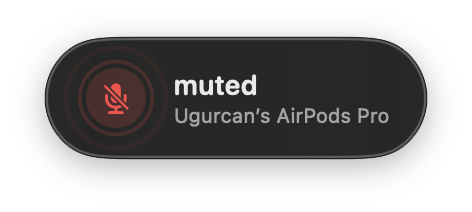
A HUD appears near the bottom of the screen when you mute or unmute, showing the state and the device it applies to. Turn it off under general if you’d rather trust the menu bar alone.
Devices that can’t be muted
sotto tries the device’s own mute property first, and falls back to driving input gain to zero for devices that don’t expose one. A handful of virtual and Continuity devices expose neither; for those the menu says so plainly rather than pretending.
To see what your hardware exposes:
/Applications/sotto.app/Contents/MacOS/sotto probe
Launch at login
Under general. It registers sotto with SMAppService, the same mechanism
System Settings shows under Login Items.